Choose your starting audio
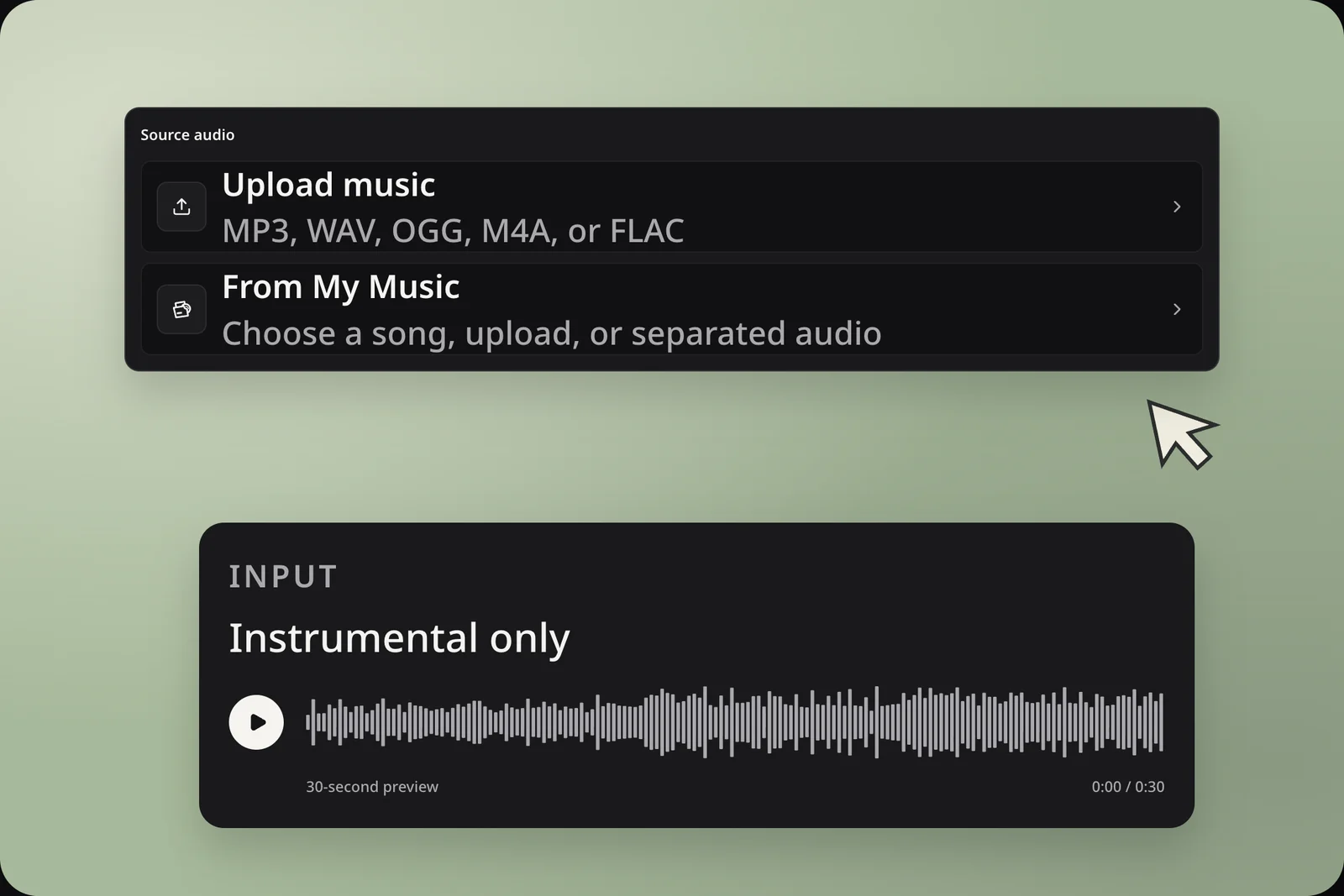
To add vocals to instrumental music, upload audio or choose Songs, Uploads, or My Stems from My Music. Preview your selection and filter by project when needed.
Bring your music, give the performance a direction, then listen for a version you want to develop.

To add vocals to instrumental music, upload audio or choose Songs, Uploads, or My Stems from My Music. Preview your selection and filter by project when needed.

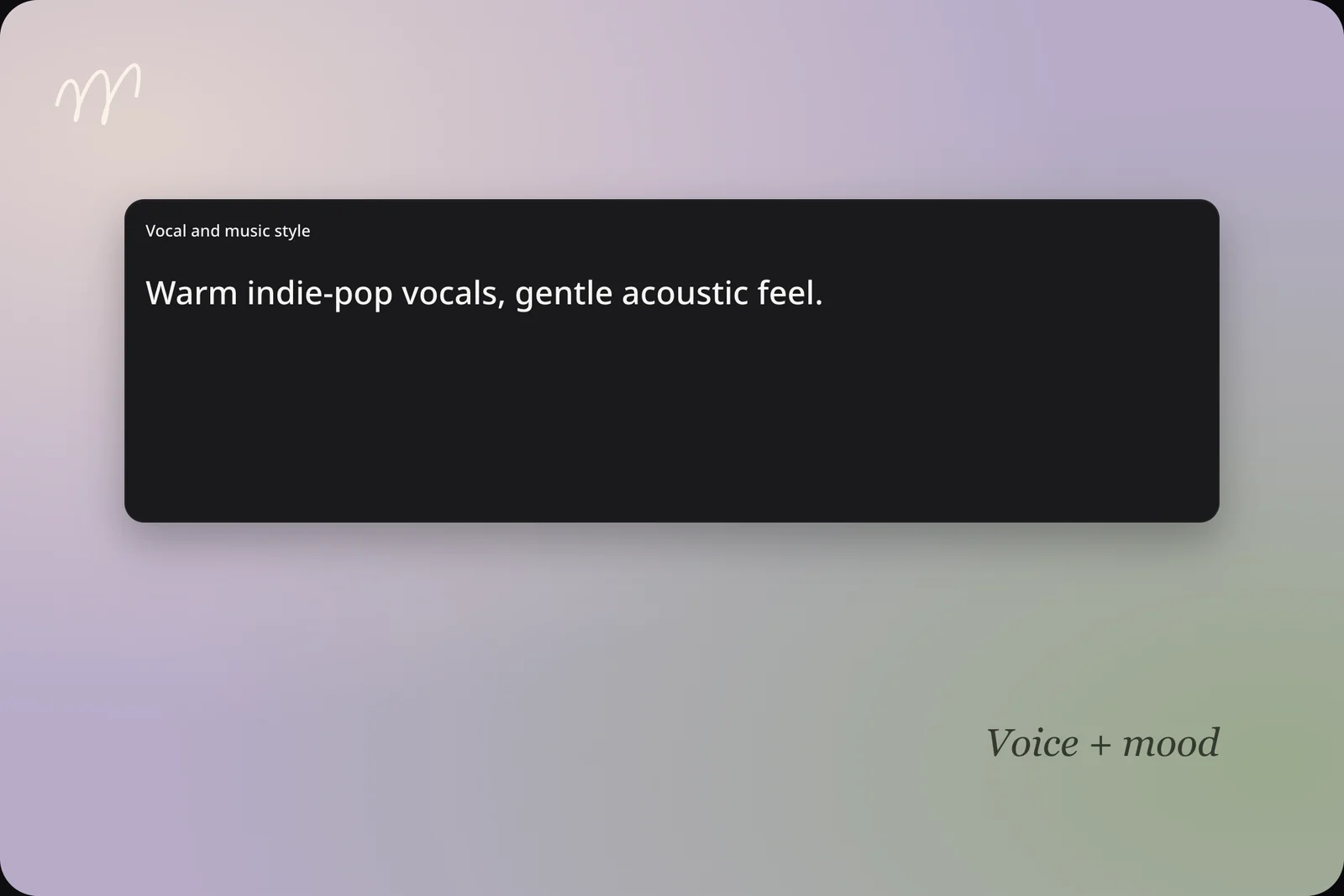
To add vocals to music, describe the voice and mood in Vocal and music style. Try warm singing, gentle backing, and an understated chorus.

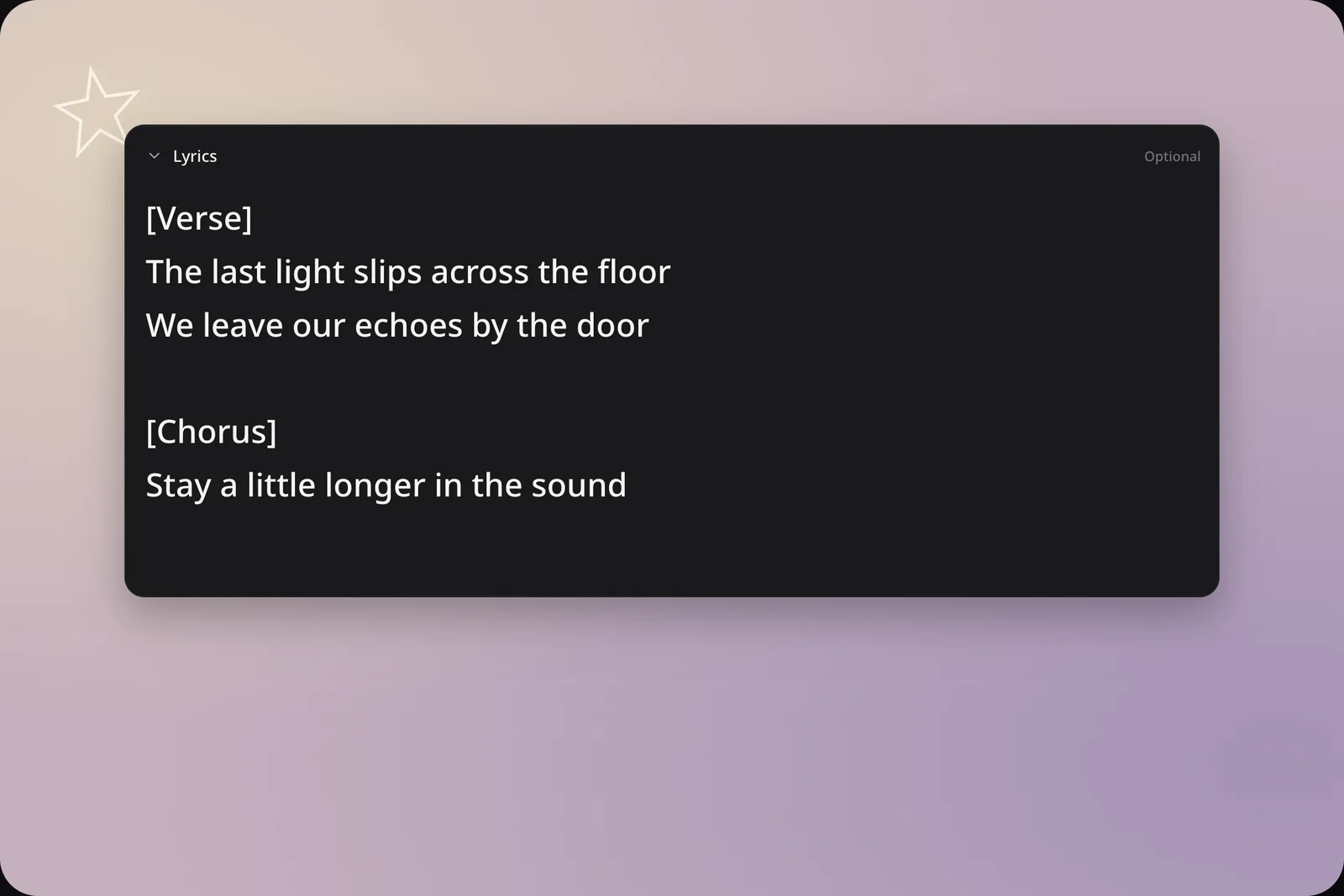
Expand Lyrics to add a verse, chorus, or complete lyric. You can also add vocals with Lyrics left empty.

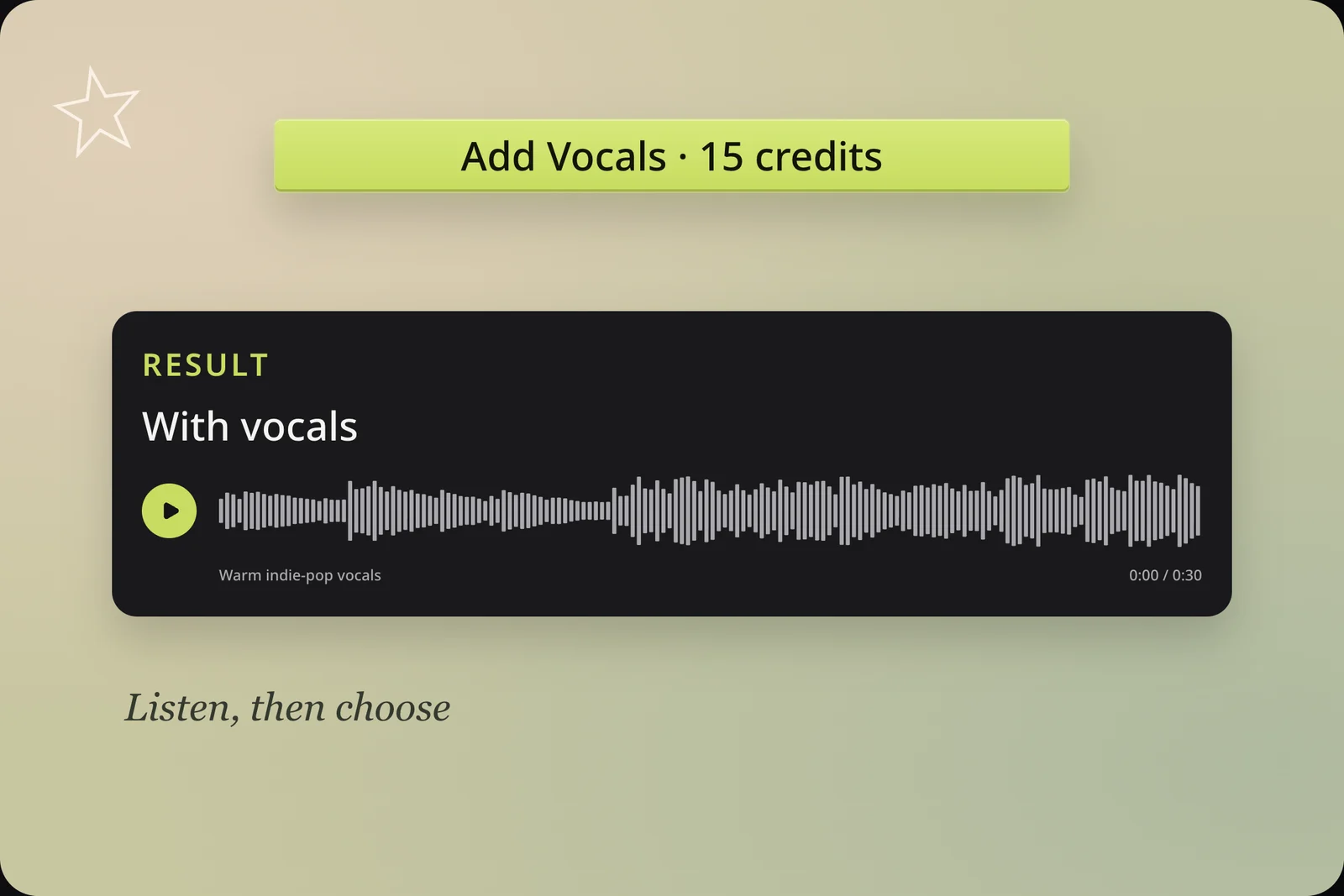
Review your audio, style, model, and credit cost, then add vocals to instrumental music. Listen alongside your source before choosing your next step.
Different starting ideas call for different performances. Use the same audio to explore a clear creative question.
Add vocals to a beat when you want to hear a possible song direction. Explore a melodic performance or more rhythmic phrasing, then decide which approach suits the atmosphere before developing the rest of your idea.

You do not need a production vocabulary to give useful direction. Describe the qualities that would make the song feel right.

Warm, intimate indie-pop singing.
Soft, close singing for an intimate indie-pop feel.
Describe qualities, not a named singer. Add Vocals creates a new rendition; it is not voice cloning.
After you add vocals, choose the next action around the result you actually want to keep.
Choose a next step after listening to the complete result.
Use AI Song Cover to explore another interpretation of a saved version. Listen to both results before choosing the direction you want to continue.
Use AI Music Extender to develop a continuation from an existing result. Start with the version whose voice, mood, and arrangement you want to carry forward.
Open Vocal Remover when you need vocal and instrumental files from your chosen song. Separation is a further task; the initial result here is a new song version.
When you add vocals to instrumental music, AI creates a new song version from your audio and creative direction. The result includes its musical setting; it is not a standalone dry vocal file. Listen to the output as a complete performance, then use the separation tools if you need individual audio parts for your next step.
No. Lyrics are optional in this tool. Provide them when you have specific words to hear, or leave the field empty while exploring a vocal idea. If your starting point is only written lyrics and you do not have source audio, Lyrics to Song is the more direct place to begin.
Yes. You can add vocals to instrumental music, a beat, or a compatible instrument part from My Stems. A full backing track and a single guitar part provide different musical references, so expect different results. Preview the selected file first, especially when the original song has several separated parts with similar names.
You can describe vocal qualities and musical style, but Add Vocals does not provide a named-singer catalog or a voice-cloning flow. Use concrete performance language rather than relying on a person's name. The generated voice can vary between attempts, so review the version you intend to use instead of assuming the same voice will recur.
Your original audio file stays available and is not overwritten. The generated song is a new interpretation guided by that source, so its arrangement, timing, or sound may differ. If exact preservation is essential, compare the result carefully before using it in a larger production. Keeping the original file is different from reproducing it identically inside the output.
First choose a generated version you like, then use Vocal Remover to separate its vocals and instrumental. This is a separate action with its own displayed cost and processing. Add Vocals itself creates the new song version; do not select it expecting the initial download to contain only isolated singing.
The current cost is 15 credits per generation task, with paid access required. Check the amount shown on the submit button before starting. Listening to the public example does not start a generation. Commercial use follows your plan and the rights you hold in the source audio and lyrics; review the current pricing and terms for your use.
After you add vocals to instrumental music, return to the task's project to listen to saved results and choose your next action. My Music also helps you locate songs, uploads, and separated files for another creation. The form before submission is not an automatically saved draft, so keep a copy of important lyrics or directions if you plan to leave and return later.
When you add vocals to music, listen to the same passage in each version. Check whether the first words feel natural, the chorus carries the intended emotion, and the voice remains understandable when the backing becomes busier. For a second listen, focus on one detail: a held note, a phrase ending, or a word that sounds unclear. Add Vocals can offer different interpretations; choose the performance that serves your song rather than judging only the opening seconds. Use the same headphones and listening level for both versions so the comparison stays consistent.
Describe the feeling of the performance and one audible detail. For an intimate idea, try close, restrained singing with gentle phrase endings. For an energetic hook, ask for brighter delivery and a more confident chorus. Keep a copy of your previous direction before trying another. This gives you a clear reference when comparing results and helps you decide which change was useful. A longer description is helpful only when its details agree.
Start with music you want to develop. Choose the source, describe the performance, and hear where a voice can take it.