
Develop an a cappella demo
Add instrumental to vocals to develop an a cappella melody. Explore harmony, rhythm, and atmosphere that suit your demo.
Start with the recording you have and the kind of song you want to develop. Let that decision guide your backing description.
Add instrumental to vocals to develop an a cappella melody. Explore harmony, rhythm, and atmosphere that suit your demo.
Add music to vocals saved in My Stems. Preview the isolated part before exploring a new musical setting.
Ask for gentle guitar or soft piano. Describe the mood and energy you want alongside the instruments.

Add instrumental movement with bass, drums, or keyboards. Listen for an arrangement that leaves space for your voice.
Save your preferred version, compare another direction, or continue with Extend, Cover, and audio tools.

Choose the right reference, give the arrangement a clear direction, and judge the complete result by listening.
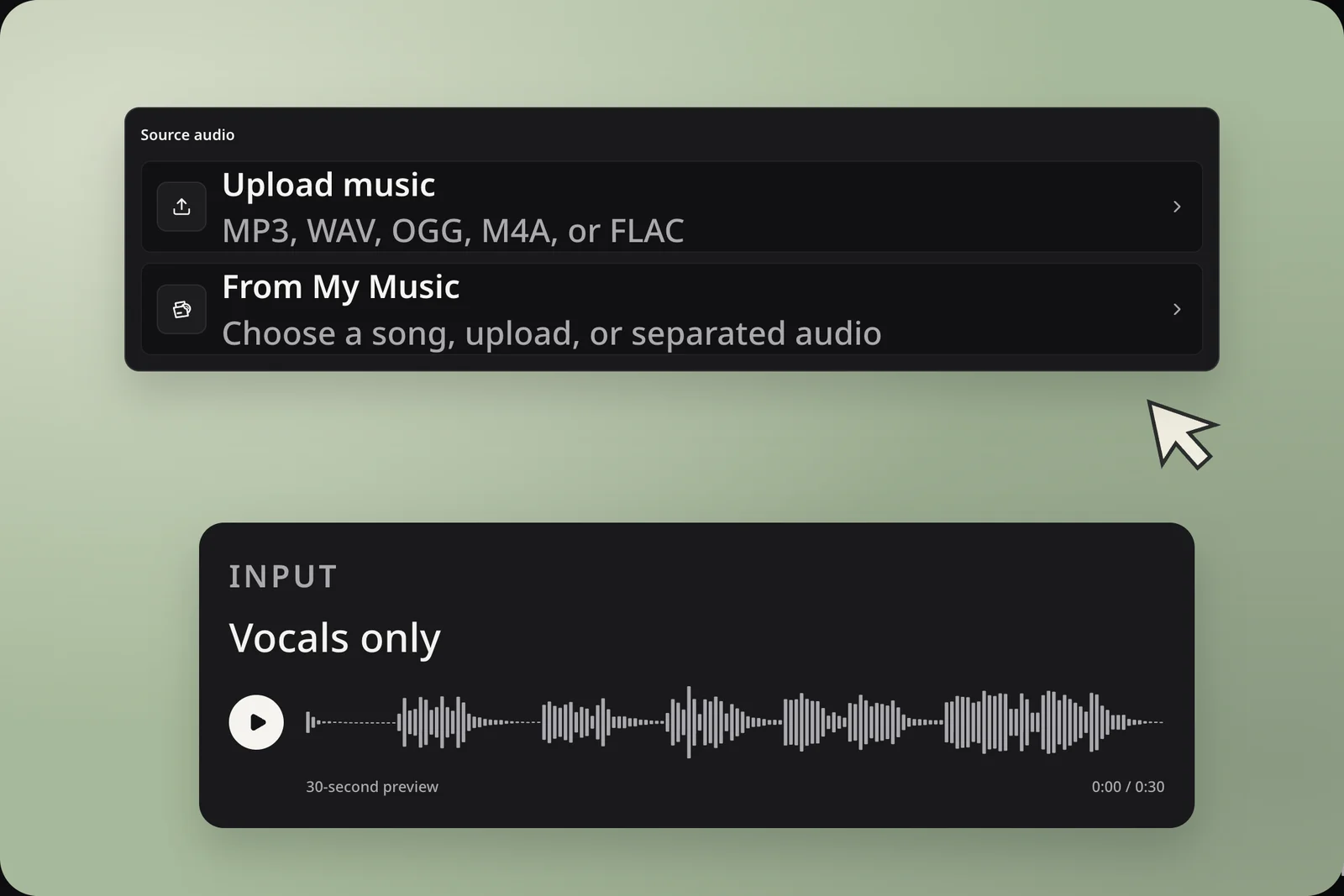
To add instrumental to vocals, upload a recording or choose audio from My Music. Preview an isolated vocal in My Stems, and filter by project when needed. Listen for a clear performance and manageable background noise. Check that the selected file contains the voice you want to develop.
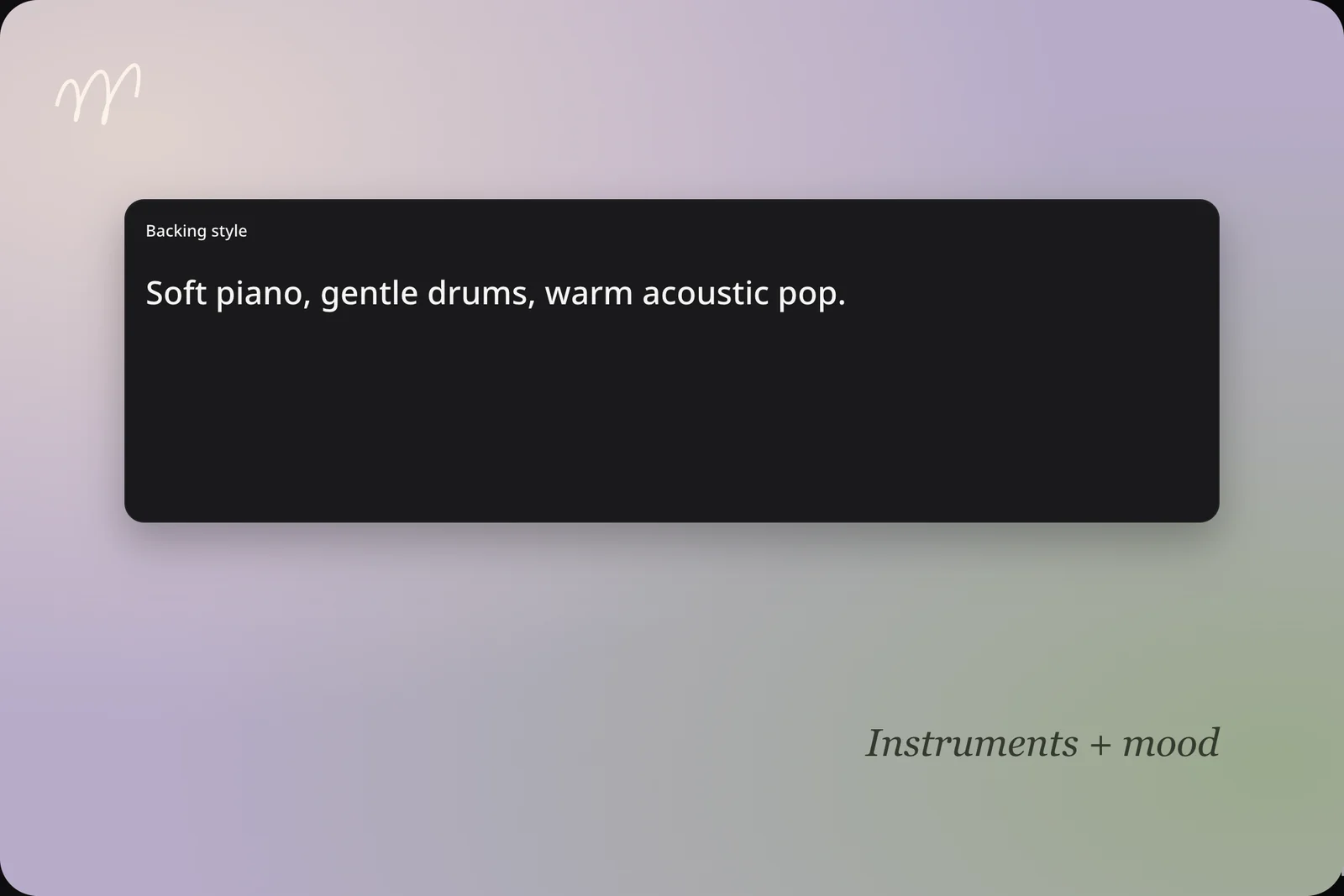
Describe the mood, instruments, and energy in Backing style. Start with one clear direction, such as acoustic pop with soft piano and gentle drums. Example direction: “Warm acoustic pop, soft piano, gentle drums, and supportive bass.” For a lighter setting, say which elements should feel restrained.
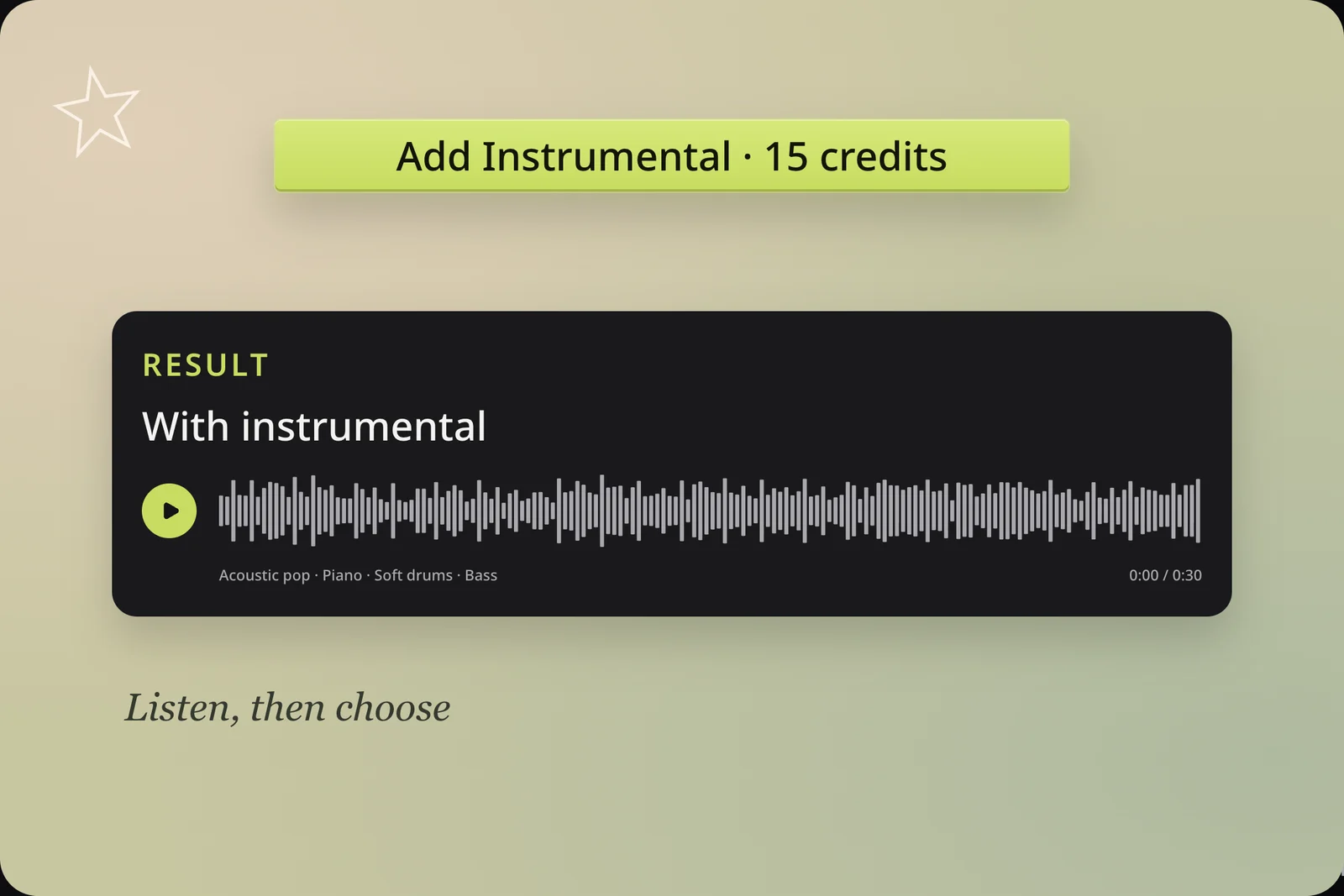
Review the source, model, style, and credit cost, then add instrumental to vocals. Compare the new song with your recording and keep the version you prefer. Does the arrangement support the words and melody? Is the instrumental energy right for the intended mood? Does the generated vocal performance work for your purpose?
Use musical intentions you can recognize when listening. You do not need to write a technical production specification.

Soft piano, gentle percussion, and supportive bass.
Let piano lead, with light rhythm beneath the voice.
These words guide generation; they do not create separately editable instrument tracks.
Once you add instrumental accompaniment, choose the next tool around the version you want to develop.
Choose a next step after listening to the complete result.
Use AI Song Cover to explore a different style from a completed song. Keep the earlier version available so you can compare the character of each interpretation.
Open AI Music Extender when a saved version needs a continuation. Use the song whose arrangement already points in the direction you want to follow.
Use Vocal Remover to separate the instrumental and vocals from your chosen result. This gives you another asset to work with through a separate processing action.

Choose the recording you want to develop, describe a musical setting, and listen to a new arrangement built from your direction.
