Vocals on Their Own
Focus on the lead vocal for practice, editing, arrangement study, or another permitted creative workflow.
SEPARATE WHAT MATTERS
An AI Stem Splitter analyzes a mixed song and returns separate audio parts, or stems. AISongsMaker supports up to 12 stems for eligible generated songs, depending on the selected separation mode. Uploaded audio currently uses four-track separation: vocals, drums, bass, and other instruments. The available outputs depend on the source and mode.
Focus on the lead vocal for practice, editing, arrangement study, or another permitted creative workflow.
Hear drums and bass away from the full arrangement so timing, groove, and low-end movement are easier to study.
Preview guitar, keyboard, strings, synthesizer, or other parts when the selected mode and source return them.

Review the outputs offered by the AI Stem Splitter before starting. Separate the mix, then preview the returned parts your next task needs.

Use the AI Stem Splitter to prepare clearer parts for balance, arrangement, practice, or another authorized production workflow.

Start from My Songs when possible so the original mix and separated outputs remain understandable as one project.

THE MIX · THE AVAILABLE LAYERS
Listen to the vocals and drums separated from Every room has a different rhythm. Compare the same song’s parts, then open the workbench to hear the other available instruments.

SOURCE IN · USEFUL STEMS OUT
The clearest source, correct mode, and intended use make the result easier to evaluate.
Dense mastering, reverb, and overlapping frequencies can affect every separated part.

STEP BY STEP
Start with an eligible mix in the AI Stem Splitter and choose the returned parts that help your project.
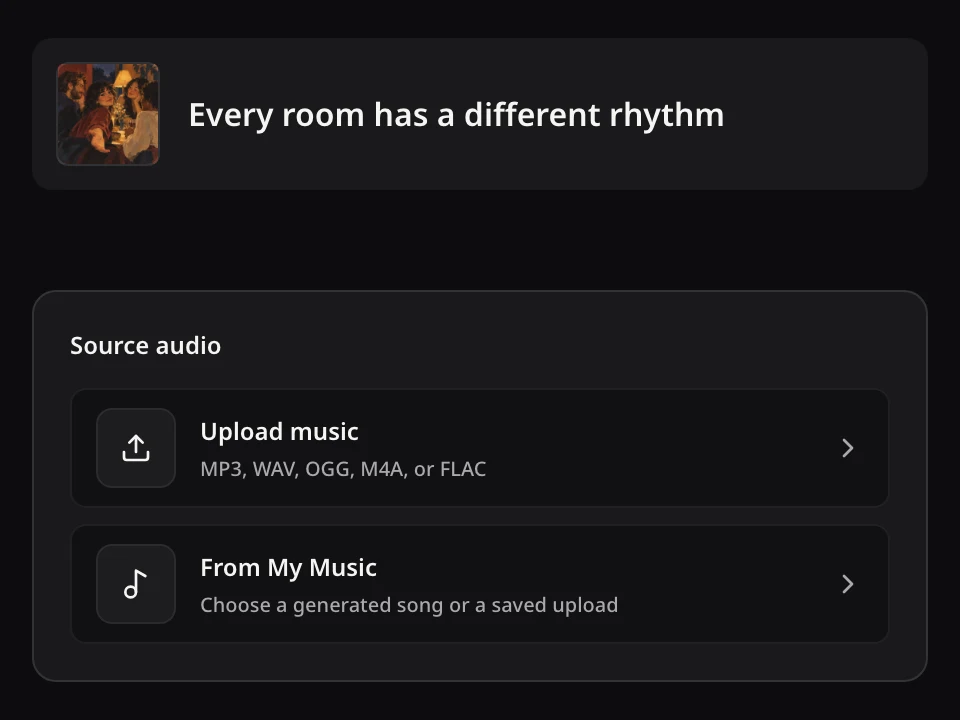
Open the AI Stem Splitter with an eligible saved song or permitted upload. A clear source makes each returned part easier to evaluate.
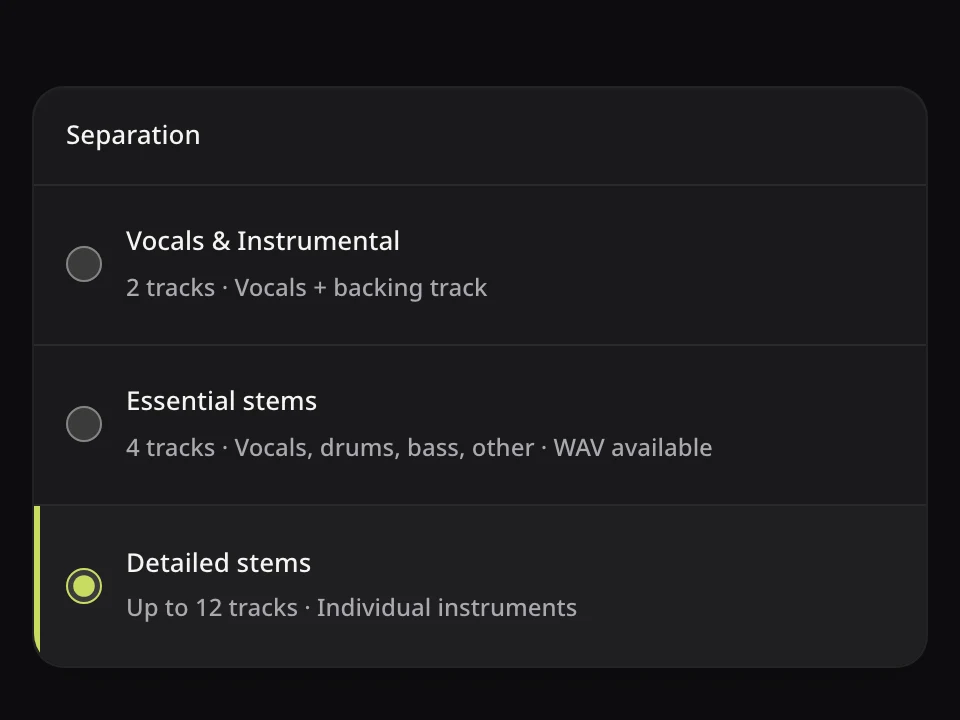
Check the separation modes, listed parts, and Credits before starting. The AI Stem Splitter output list depends on the selected mode and source.
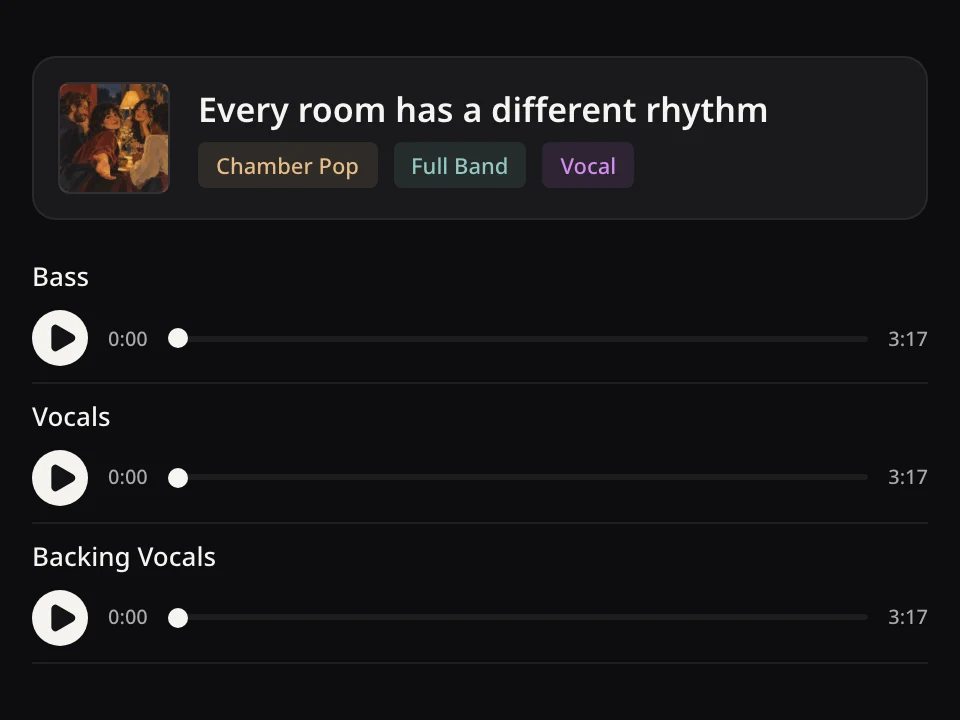
Listen to each returned part for overlap or artifacts. Download the available stems that are useful for the work ahead.
YOUR STEMS · YOUR NEXT MOVE
Keep source context and move useful outputs into the next supported action.
Study drums and bass apart from the mix, practice with useful instrument parts, or prepare audio for an authorized edit. If you only need vocals and accompaniment, use Vocal Remover instead.
Open a tool, then choose the song or result you want to use.Save the separated parts returned for this result.
Continue with one part while preserving its source context.
Explore another musical direction from the original.
AI STEM SPLITTER QUESTIONS
Supported inputs, available stems, separation quality, access, and downloads.
Open the AI Stem Splitter, choose an eligible track from My Songs, or upload audio you have permission to process. Select an available mode, review the displayed Credits and outputs, run the separation, then preview and download the parts you need.
YOUR SONG · YOUR STEMS · YOUR NEXT MOVE
Choose the separation you need and turn one finished mix into available parts you can preview, download, and use.